A realistic example: a customer dashboard
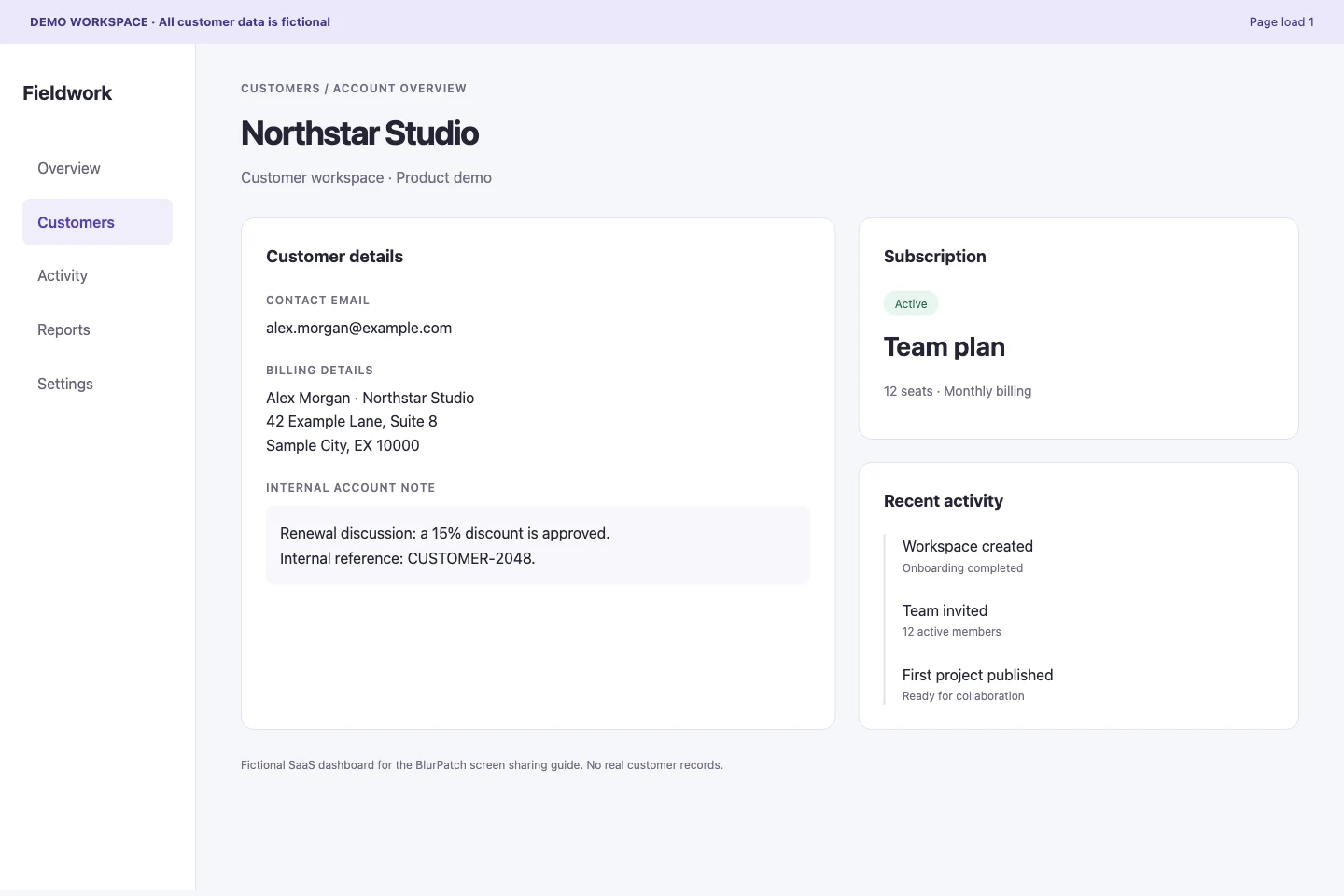
Imagine you are demonstrating a customer-success dashboard. Your audience needs to see the customer workflow and subscription status, but not a contact email, billing address, or internal account note.
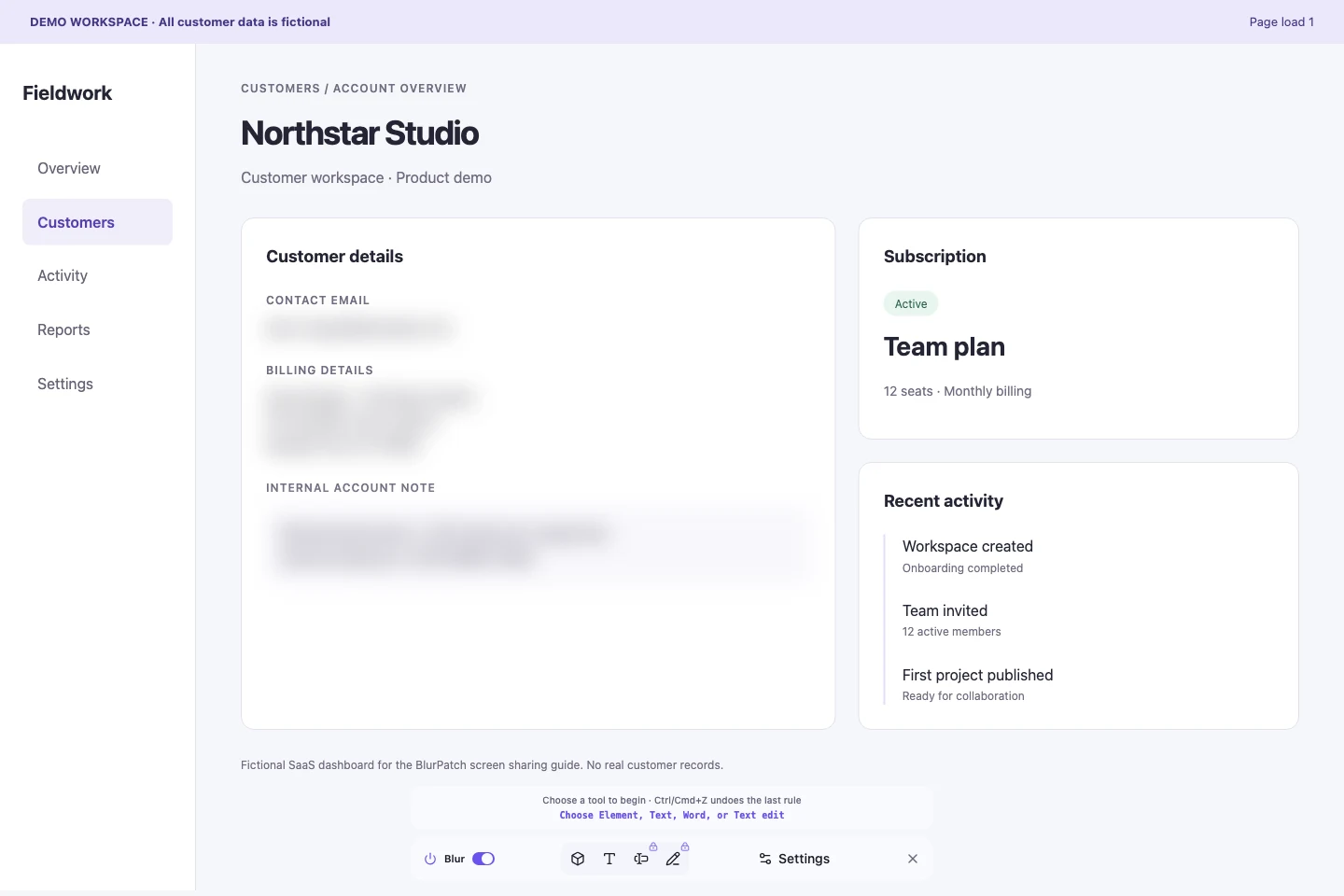
Our example uses a fictional company, Northstar Studio, and the address alex.morgan@example.com. We will blur three elements: the contact email, the billing details, and the internal note. The navigation, plan, and activity timeline stay readable.
1. Install BlurPatch
Install BlurPatch from the Chrome Web Store. Open a normal HTTP or HTTPS webpage, then click BlurPatch in Chrome’s extensions menu to open its toolbar. If you already had the page open during installation, reload it first.
Your first 25 blurs need no account. Start blurring right away; imported rules also count toward this allowance. When you need more, open Settings and choose Sign in on the website.
The Free plan includes up to 25 saved rules across your connected installations, covering individual elements and text blocks. This three-element example fits within Free if you have three rules available. Individual words, component groups, and text replacement require Pro or Lifetime. You do not need those tools for this walkthrough.
2. Select the elements that contain sensitive data
Keep screen sharing off while you prepare. In BlurPatch’s toolbar, make sure the Blur switch is on and choose the Element tool. Hover over the contact email and check the highlighted area before clicking it. BlurPatch applies the blur and saves the rule.
Repeat for the billing details and internal note. Select a containing block when several adjacent lines should be hidden together. For a text block inside a larger component, the Text tool lets you target the text instead of the whole element.
Watch for a success notice after each selection. A sign-in prompt, limit message, or save error means you should resolve the issue before relying on that rule. This is manual selection: BlurPatch does not automatically discover every sensitive field on the page.
3. Check the result before anyone can see it
Close the BlurPatch toolbar with its close button and inspect the webpage. Closing the toolbar leaves the blur active; turning the Blur switch off does not. If characters are still recognizable, open Settings and increase that saved rule’s blur strength, or hide a larger element.
Scroll through the content and open the menus, panels, and customer records you expect to show. Check for duplicate details in a sidebar, a tooltip, a search result, or a notification. A blurred email in one location does not hide every occurrence of that email.
For a high-stakes demo, use a separate account with synthetic data wherever possible. A visual blur is an extra presentation control, not a replacement for keeping confidential data out of the demo.
4. Refresh the page and verify saved rules
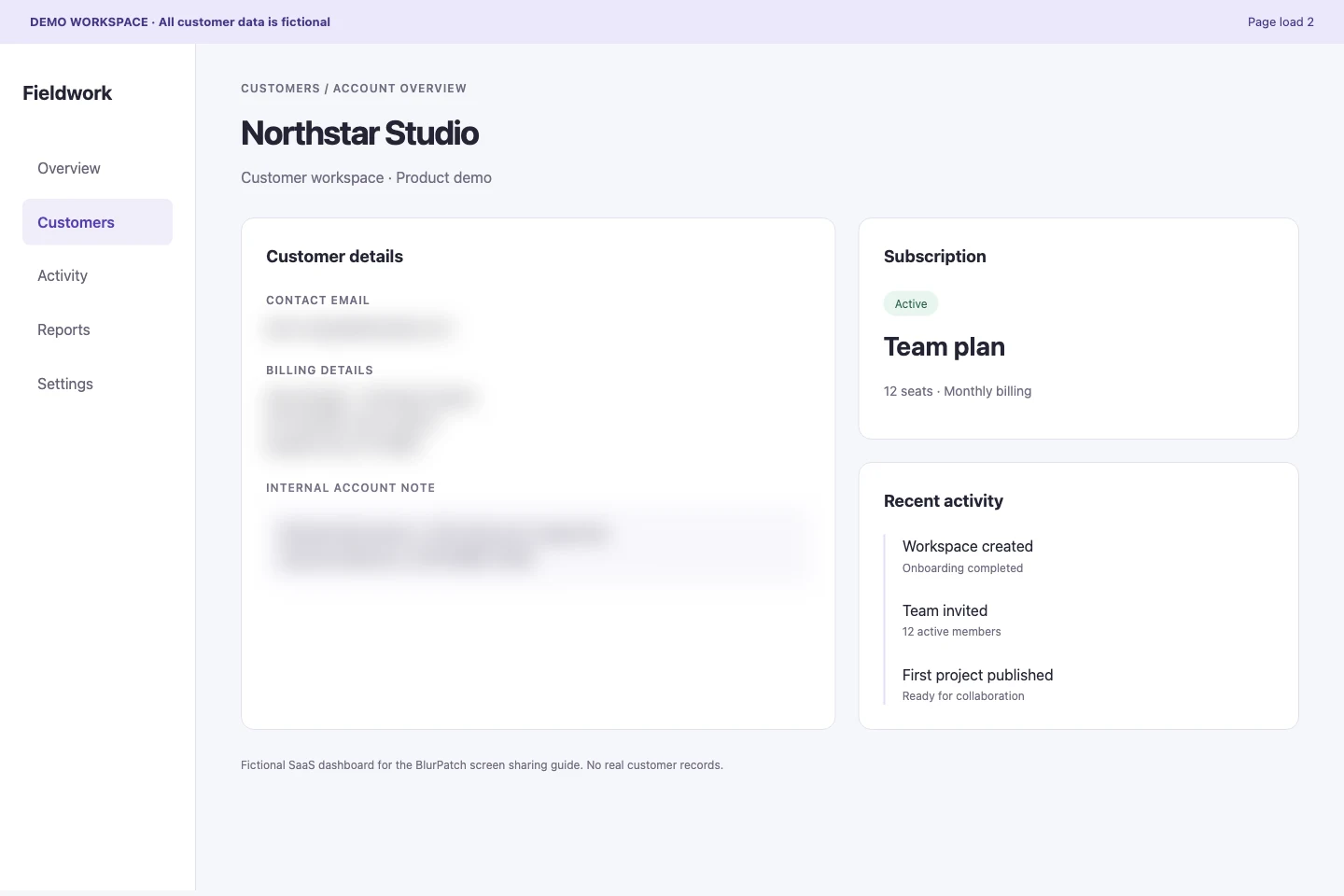
Reload the same page while screen sharing is still off. Wait for its content to finish loading, then confirm that all three fields are blurred without selecting them again. Scroll to any fields that start outside the visible area.
Rules are stored locally and reapplied to matching elements. A normal selection usually applies to the current page path; it is not a promise to cover every customer page on the site. If you navigate to another record or the application changes its layout, check that view too. A missing blur means you should stop and adjust or recreate the rule before sharing.
5. Share the prepared tab or browser window
Open your meeting app’s sharing picker. Choose the prepared browser tab if that option is available. If you need to show multiple views in one browser window, use a dedicated window containing only the tabs you intend to present.
Check the thumbnail and title in the sharing picker so you do not select another customer tab or your entire desktop by mistake. Sharing a window may also expose its tab titles and address bar. BlurPatch does not hide browser chrome, desktop notifications, or other applications.
Inspect the meeting app’s share preview. If you can, verify the received view on a second device or with a colleague before opening the session to your audience. Pause or stop sharing before changing blur rules, opening an unprepared view, or investigating a missing mask.
Understand the limits and privacy model
BlurPatch works in the main frame of supported HTTP and HTTPS browser pages. It does not run inside native desktop apps, Chrome’s internal pages, the Chrome Web Store, or local file pages. Embedded iframes and closed shadow roots are outside its coverage. Always inspect the actual content you plan to share.
Blur rules, element targeting information, and replacement text are stored locally in your browser. While signed in, the extension sends limited rule and installation metadata for account limits, including an account-specific hash of the hostname. It also sends counts of blurred targets entering the visible area of an active tab, stored as minute-level aggregates associated with your account, installation, and rule.
Those requests do not contain page content, URL paths, or raw hostnames. Read the Privacy Policy for the account, billing, and usage data details.
Before you go live
- Every sensitive field in the views you will show is covered.
- The blur remains active after a page refresh.
- Menus, scrolling, and planned navigation have been checked.
- The sharing picker points to the prepared tab or window.
- The received view or share preview shows the intended result.
Prepare your first page before your next call. Start with a few individual elements, then test the entire route through your demo.